360 Reframe
You can reframe 360° footage with the same keyframe graphs as in the regular product. New in v1.4
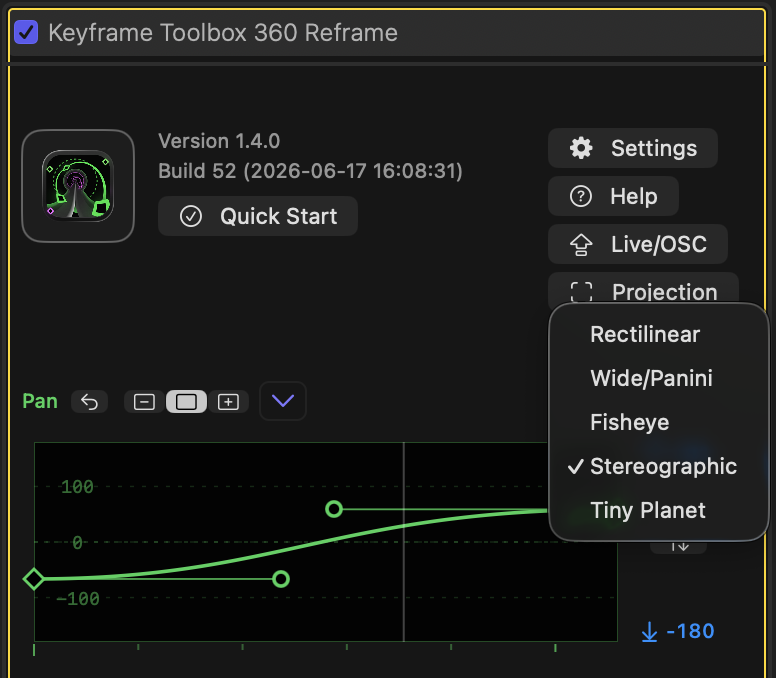
- To reframe 360° footage, you'll apply the new, dedicated effect: Keyframe Toolbox 360 Reframe. If you don't see it, please run the Keyframe Toolbox app, then restart FCP.
- QUICK START INSTRUCTIONS — to work correctly, this effect needs to sidestep FCP's native 360° processing. To get started:
- Using your camera manufacturer's tools, process your original 360° camera footage into equirectangular (panoramic) format.
- Import the equirectangular clips into FCP, then select them in the Browser.
- In the Info Inspector, set the Projection Mode to Rectangular (not Equirectangular).
- Add your 360° clips to a regular (not 360º) timeline and set Spatial Conform to Fill.
- Add the Keyframe Toolbox 360 Reframe effect to your 360° timeline clips.
- Standard Keyframe Toolbox graph controls can be used with a new set of properties, including Pan, Tilt, Field of View and Roll. Additionally, Opacity, Distortion and Blur can be added in Settings.
- A new Projection button at the top switches between five ways to reframe your footage:
- Rectilinear will never curve a straight line, but allows Field of View up to 180°.
- Wide/Panini is a cylindrical view that allows a Field of View up to 220°.
- Fisheye allows more distortion around the edges of frame, and allows a Field of View up to 360°.
- Stereographic is the default projection, and it allows smooth transitions between a normal Field of View and (if Pan is adjusted down) a Tiny Planet-style view.
- Tiny Planet is a stereographic projection with a Tilt and Field of View offset to make it easier to achieve this effect — it defaults to looking down, with a wider FOV.
- In each Projection, Field of View is interpreted slightly differently, and each has different Distortion parameters behind the scenes too.
- To animate smoothly between perspectives, choosing the Stereographic projection and recording keyframes on the Field of View property is usually enough. However, if you want more control, consider also animating the Distortion parameter. This graph is disabled by default, but can be enabled in Settings.